
Bridging the Gap: Deploying OCI Images Natively in Proxmox VE 9.1
The release of Proxmox Virtual Environment (PVE) 9.1 marks a significant advancement for infrastructure managers seeking highly efficient, consolidated environments. While Proxmox has long excelled at system virtualization using KVM and traditional LXC system containers, version 9.1 introduces a game-changing feature that dramatically simplifies the deployment of modern, application-focused workloads: Native OCI Image Support.
⚠️ Important Note: The support for application containers created from OCI images is currently released as a Technology Preview.
This new capability allows administrators to pull standard Open Container Initiative (OCI) images - the same format used by registries like Docker Hub - directly into Proxmox VE for use as container templates. For those managing software-defined storage (SDS) and complex application stacks, this integration streamlines workflows by eliminating the need for dedicated nested Docker hosts just to run application-level containers.
OCI Integration: A New Paradigm for PVE
Historically, Proxmox VE relied on pre-built LXC system templates, which are excellent for running a full operating system environment. However, deploying application containers like a database, a reverse proxy, or a web application often meant deploying a full virtual machine just to run a Docker engine inside it.
PVE 9.1 changes this by treating OCI images as a valid template source.
Key Benefits
- Direct Access to Registries: Instantly access tens of thousands of official, verified application images from sources like Docker Hub.
- Simplified Application Deployment (Preview): Deploy applications directly as lightweight LXC containers, benefiting from Proxmox's robust storage, networking, and cluster management features.
- Resource Efficiency: Leverage the shared host kernel for application containers, significantly reducing RAM and CPU overhead compared to full KVM virtualization.
The implementation supports two primary modes: creating full system containers from suitable images, and the new Application Container mode (technology preview) for lightweight service deployment.
Practical Guide: Deploying Caddy via OCI in PVE 9.1
To demonstrate the seamless integration, let’s walk through the process of pulling and deploying the caddy:latest web server, a classic OCI application image, directly from Docker Hub.
Preparing the Environment in the PVE GUI
The first step involves utilizing a PVE storage configured to accept container templates (such as a directory or any other file based storages).
- Navigate to Datacenter -> Storage -> Select your desired storage.
- In the storage view, select the "OCI Images" tab.
Downloading the OCI Image
This process is handled entirely within the Proxmox interface, which communicates directly with the remote registry.
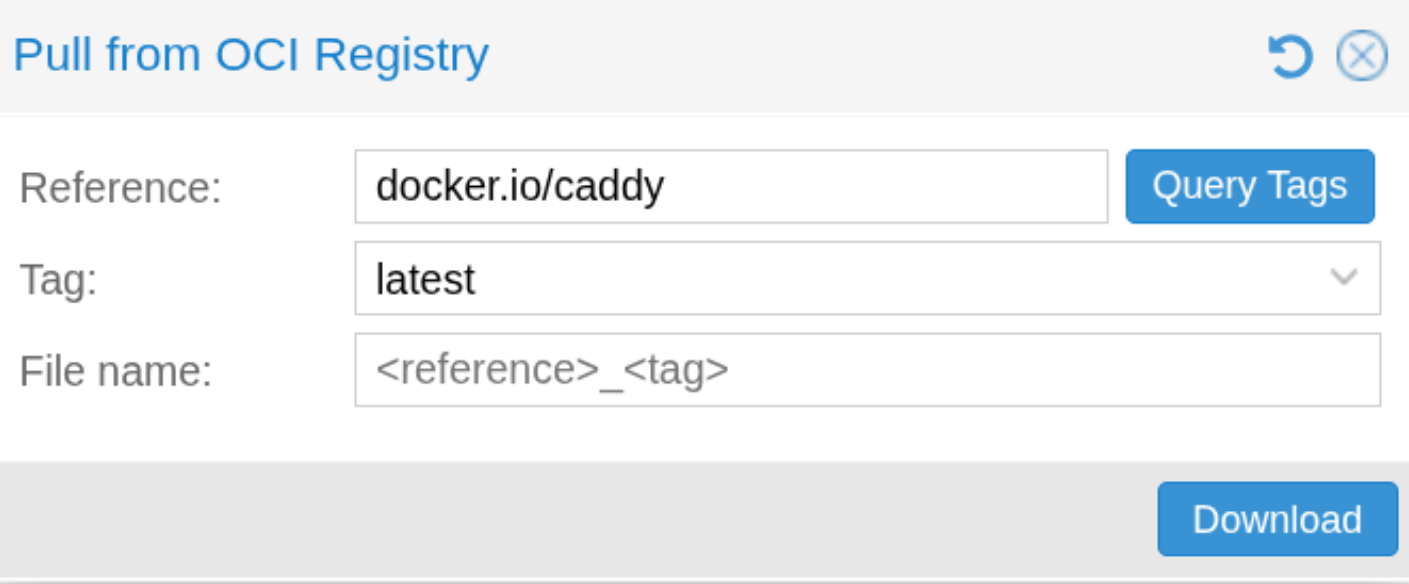
Caddy Image Import Steps
1. Reference
registry.hub.docker.com/library/caddy
→ Defines the target registry and the image name (caddy).
2. Tag
Click Query
→ Proxmox connects to the registry and loads the list of available tags (e.g. latest, versioned tags).
3. Select Tag
Choose latest
(or your preferred version).
4. Action
Click Download
→ The image is pulled, converted, and stored as a template on the selected storage.
Creating the Container
Once the image is downloaded, it appears in the template list when creating a new container (CT).
- Click Create CT in the Proxmox interface.
- In the Template section, select your storage and choose the newly downloaded
caddy:latestimage. - Configure the standard settings (General, Disks, CPU, Memory).
- In the Network configuration, the new integration shines:
- For lean application containers, host-managed DHCP networking will be enabled automatically. This feature allows containers without a traditional network stack to acquire an IP lease directly via the Proxmox host’s DHCP tooling, ensuring instant network connectivity.
- Finalize the configuration and start the container.
Accessing Your Application
With the container running, the Caddy web server is now live and accessible. Access your application by using the IP address assigned to the new container.
Conclusion
This workflow streamlines service deployment in Proxmox VE clusters. It leverages the efficiency of LXC containers and provides access to the large OCI application ecosystem. Organisations depending on Proxmox for core infrastructure gain a robust, integrated solution.
The current OCI implementation does not support in-place updates, unlike Docker. When a container is created, Proxmox merges all image layers into a single root filesystem. This process disrupts the layer-based update mechanism, a key advantage of OCI images. At present, containers must be recreated to apply updates. The Proxmox development team has said that support for in-place updates is planned for a future release. However, this feature is not yet available.
It is early days for this feature, and we will continue to monitor its development for future updates that may strengthen its role in our infrastructure.