
Documentation
- Getting Started Configuration
- OpenID & LDAP
- Custom TLS Certificate
- Custom OS Images
- Extra Files
- Network Interface Bonding
- Multipath disks
- Accessing your Cluster
- CephFS
- MDS Notifications
- CephFS Guard
- RBD
- S3
- S3 Multisite
- NVMe over Fabrics
- SMB
- NFS
- Ceph Keys
- Updating croit
- Replacing OSDs
- Replacing NIC
- PG numbers
- Updating Ceph
- Migrating or restoring croit container
- Backups
On this Page:
- When to use multisite
- Concepts in 30 seconds
- Setting up a multisite
- Step 1: Convert the primary cluster
- Step 2: Join a secondary cluster
- Monitoring sync status
- Updating endpoints
- Failover and disaster recovery
- Failover: promote a secondary when the primary is down
- Failback: switch back to the original primary after recovery
- Read-only mode
- Limitations and caveats
- Troubleshooting
- Updating Ceph across the sites
S3 Multisite
S3 multisite replicates buckets, objects, and user metadata between two Ceph clusters so you can serve S3 from multiple sites for disaster recovery or geographic distribution. One site is the primary (the source of truth for metadata), all others are secondaries that pull from the primary.
Before reading this page you should already have S3 working on at least one cluster.
When to use multisite
- Disaster recovery. Keep a warm standby in a second data center; promote it if the primary becomes unreachable.
- Geographic distribution. Serve reads from the site closest to clients while writes still go through the primary.
- Data locality compliance. Some workloads must keep a copy of every bucket in a specific region.
Multisite is an active/active design at the protocol level, but operationally most setups treat one site as the writer and the other(s) as a backup. Read-only secondaries are also supported (see Read-only mode).
Concepts in 30 seconds
- Realm: the top-level container for a multisite. All sites in a multisite share one realm.
- Zone group: a group of zones, typically one per geographic region. Croit creates a single zone group per multisite.
- Zone: one Ceph cluster's view of the data. Each croit cluster owns exactly one zone.
- Sync user: a Ceph user with system privileges whose credentials are used by secondaries to authenticate to the primary.
- Token: a base64 blob containing the realm name, zone group name, sync user credentials, and primary endpoints. Generated by the primary and pasted into the secondary during setup.
Croit hides most of these from the day-to-day UI; they show up in the API and the radosgw-admin output, but you usually don't need to touch them directly.
Setting up a multisite
Multisite is configured from the Object Storage → Multisite tab on each cluster.
Step 1: Convert the primary cluster
On the cluster you want to be the primary:
- Deploy S3 normally (see the S3 page). Multisite is configured after S3 is up, not during the initial deploy.
- Navigate to
Object Storage → Multisite. You will see aMultisite OFF · Single-site deploymenttile.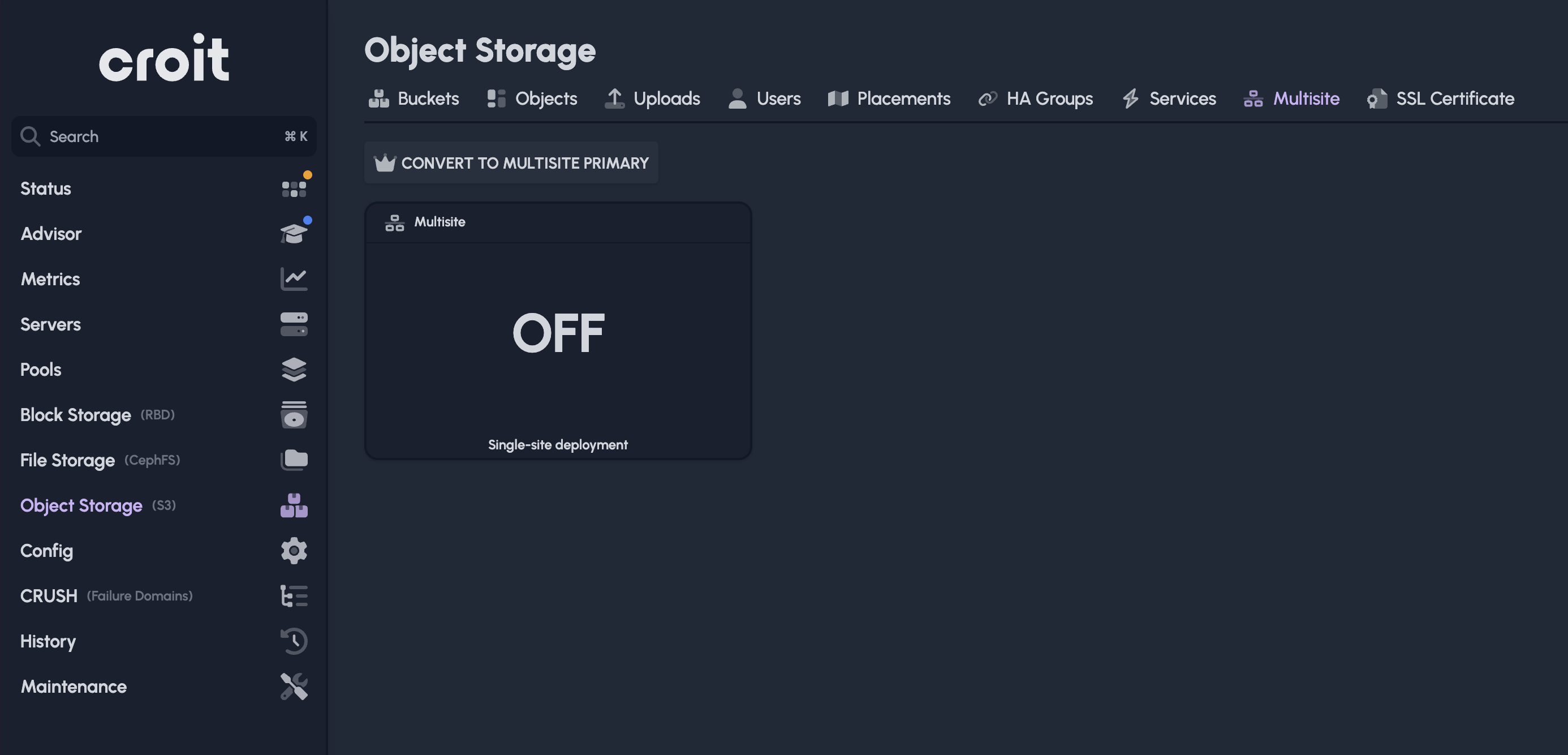
- Click
Convert to multisite primary. - Review the Endpoints list. Croit prefills it with the URLs of every RGW service on this cluster. Adjust them if your operational endpoints differ, for example, if you want secondaries to connect via a public DNS name or an HA-group VIP rather than raw cluster IPs.
- Pick a Sync user name (default:
croit-multisite-sync). Croit creates this user with system privileges; its credentials are baked into the token.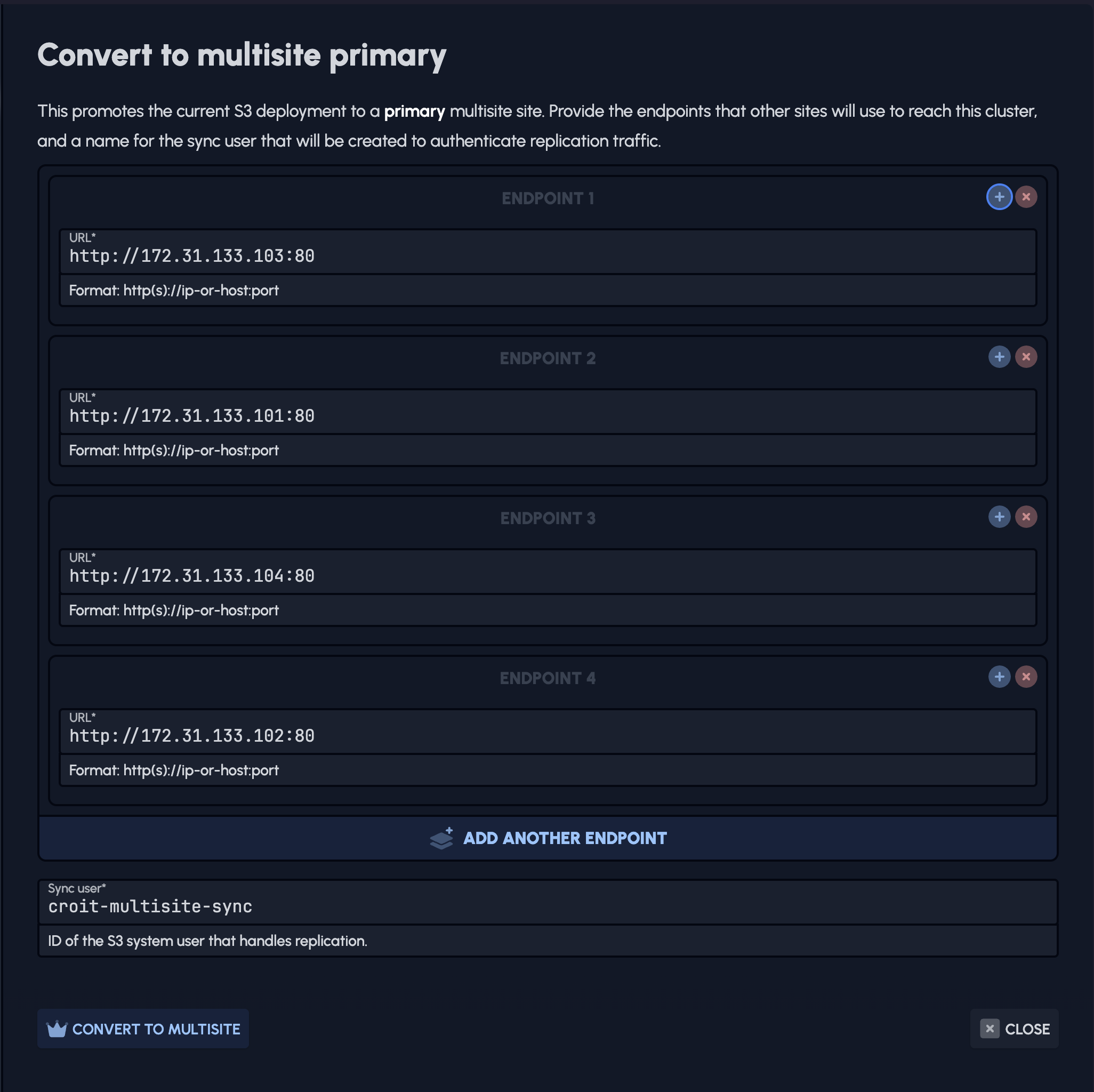
- Click
Convert to multisite. RGW services are rolling-restarted automatically.
When the task finishes, the multisite token modal opens. Copy the token now: you will need it to set up secondaries. The token contains the sync user's secret key, so treat it like a password.
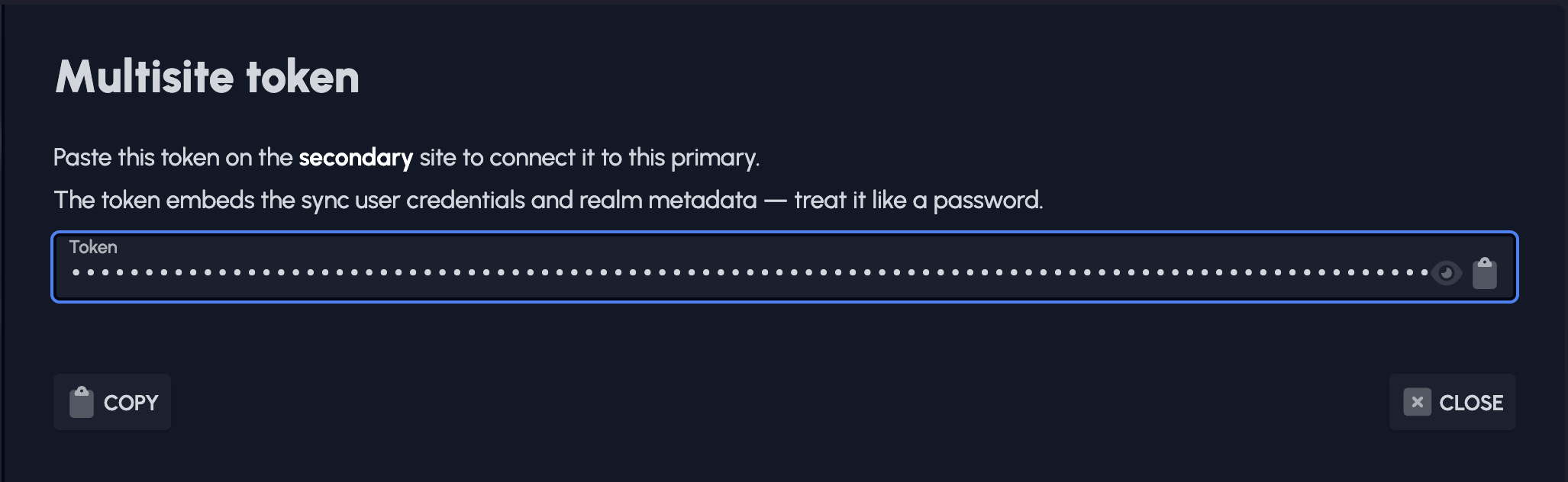
You can always re-fetch the token from the same tab via Show token.
Step 2: Join a secondary cluster
A secondary site must not have S3 deployed yet: the secondary configuration creates its own zone before RGW services start. If you already deployed S3 on the intended secondary, delete the RGW services first and re-deploy after the secondary is configured.
On the cluster you want to be the secondary:
- Navigate to
Object Storage. Because no RGW is deployed yet, croit prompts you to choose servers for the RGWs. - Select the servers, then click
Continue. - The next modal asks
Configure RGW deployment. TickJoin an existing multisite as a secondary site. - Pick a Zone name: must be unique within the multisite (e.g.
secondary,eu-west,site-b). - Review the Endpoints for this site: croit prefills with this cluster's RGW server IPs. Adjust if you want other sites to reach this cluster via different URLs.
- Optionally tick
Read-only zoneif this secondary should only pull data and reject S3 writes. - Choose the Primary site type:
- croit-managed cluster: most common. Paste the token from the primary's
Show tokenmodal. - non-croit cluster: use this when the primary is not managed by croit. Enter the realm name, zone group name, sync-user access key, sync-user secret key, and at least one endpoint URL of the primary.
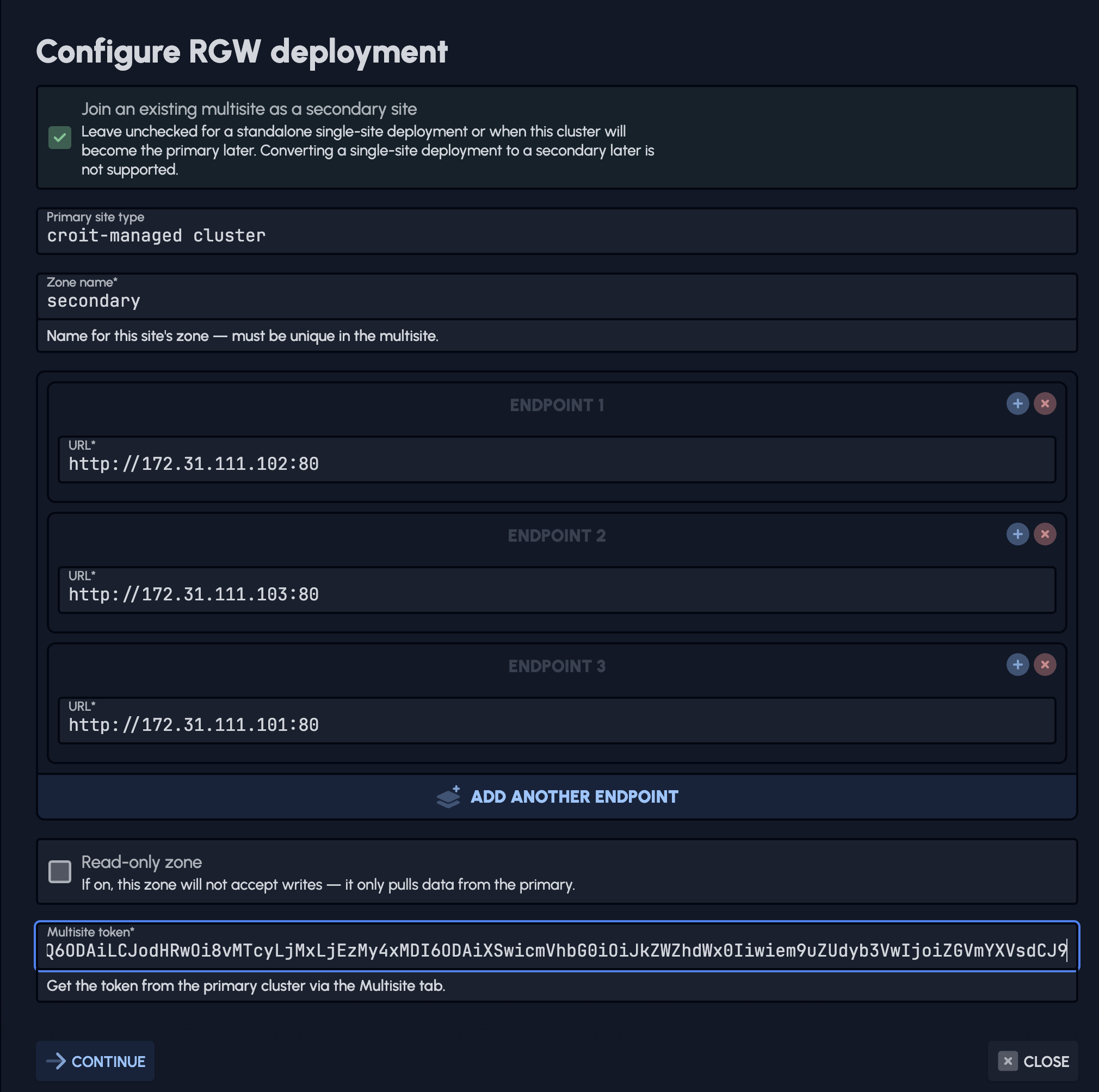
- croit-managed cluster: most common. Paste the token from the primary's
- Click
Continue. Croit pulls the realm from the primary, creates the secondary zone, commits the period, then deploys RGW services.
Once the task completes, both clusters should show up in Object Storage → Multisite. The secondary's sync metrics tiles will catch up as data replicates.
Monitoring sync status
On a secondary site, the Multisite tab shows four live tiles plus a toolbar of management actions:
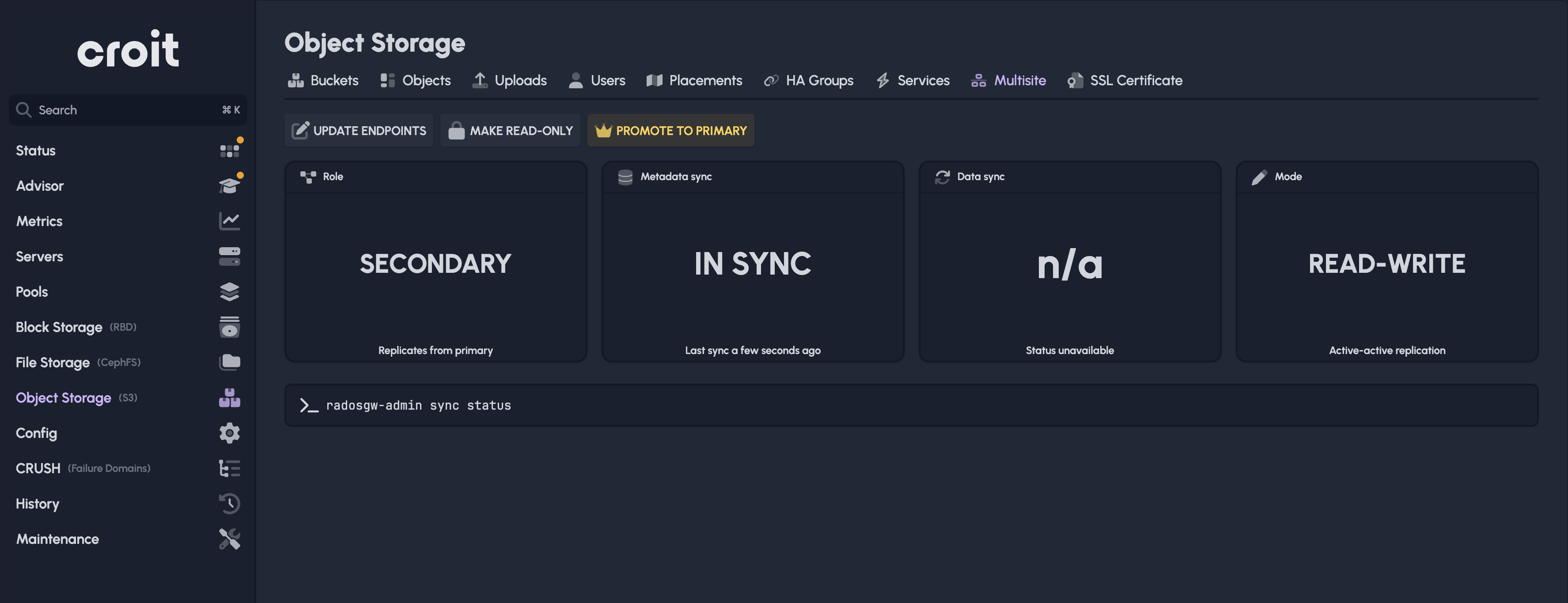
- Role:
SECONDARY(informational). - Metadata sync:
IN SYNC(green) when all metadata shards are caught up, orN BEHIND(amber/red) with aLast synctimestamp. - Data sync: same shape but for object data.
- Mode:
READ-WRITE(active-active) orREAD-ONLY(this site only pulls from primary and rejects S3 writes).
A small lag right after a write is normal; data sync is asynchronous. A persistent or growing lag indicates a problem: check that the primary endpoints in the period are still reachable from this cluster, and that the sync user credentials haven't rotated.
For deeper inspection, expand Raw radosgw-admin sync status at the bottom of the tab: it dumps the unparsed output of radosgw-admin sync status from this cluster's RGW.
The primary doesn't have sync metrics: it's the source of truth, so it's always in sync by definition.
Updating endpoints
If you change RGW IPs, add or remove RGW services, or move to a different public DNS name, the endpoints stored in the zone group (used by other sites to reach this cluster) need updating:
- Navigate to
Object Storage → Multisite. - Click
Update endpoints. - The list is prefilled with this cluster's currently-deployed RGWs. Edit as needed.
- Click
Update. RGW services are rolling-restarted.
This is metadata-only: it doesn't change the ports your RGWs listen on (use Object Storage → Services for that). Updating endpoints is also required if you change the RGW DNS name or move from HTTP to HTTPS termination.
Failover and disaster recovery
Failover: promote a secondary when the primary is down
If the primary is unreachable, you can promote a secondary to take over. On the secondary:
- Navigate to
Object Storage → Multisite. - Click
Promote to primary. - Leave
Pull realm from current master firstoff: this is the failover path; the primary isn't reachable. - Confirm.
Croit will:
- Warn you if this secondary is still behind on sync. Writes that hadn't replicated from the primary at the moment of promotion are lost when you promote: the warning shows exact shard counts so you can decide whether to proceed. Acknowledge it only if you accept that risk (typically: yes, because the primary is down and you need the cluster to accept writes now).
- Clear any read-only flag on this zone.
- Update the zone group so other sites know this zone is the new master.
- Commit the period and rolling-restart RGW services.
Once the task completes, S3 clients can write to this cluster. The dashboard tile flips to PRIMARY.
Failback: switch back to the original primary after recovery
When the original primary comes back online, its realm and period are stale because the secondary has been the master in the meantime. Failback is the same Promote to primary action with one extra step.
On the recovered ex-primary:
- Navigate to
Object Storage → Multisite. - Click
Promote to primary. - Tick
Pull realm from current master first. - Choose Current master type:
- croit-managed cluster: fetch the token from the current master's
Object Storage → Multisite → Show tokenbutton and paste it. Same flow as joining a secondary. - non-croit cluster: enter the URL of an RGW on the currently-acting master, plus the sync user's access key and secret key.
- croit-managed cluster: fetch the token from the current master's
- Confirm.
Croit re-pulls the realm from the current master, then runs the same promotion sequence. The sync-lag warning is skipped on this path because a stale ex-primary is expected to be behind; that's the whole reason we pull first.
After failback, the original-secondary-turned-master will auto-demote when it sees the new period. Data sync resumes in the new direction (old master → original primary) over the next few minutes.
Read-only mode
A secondary zone can be marked read-only. Read-only secondaries pull data from the primary but reject S3 writes: useful when a site exists purely for disaster recovery or for serving reads from a region that should never write.
You can set the flag at setup time (the Read-only zone checkbox in the secondary configuration modal), or toggle it later from the Multisite tab:
- Make read-only: visible when the site is currently writable. Confirms via a popover; RGW services are rolling-restarted.
- Make writable: visible when the site is currently read-only. Same flow in reverse.
The Multisite dashboard shows the current state via the Mode tile (READ-ONLY in amber, READ-WRITE in green).
When you promote a read-only secondary to primary, croit automatically clears the read-only flag: a primary cannot be read-only.
Limitations and caveats
- One zone group per multisite. Croit configures multisite as a single zone group with multiple zones. Multi-zone-group setups (e.g. for active-active across continents) are not yet exposed in the UI.
- Converting a single-site deployment to a secondary is not supported. A secondary must start from a fresh RGW state. To convert an existing single-site cluster into a secondary, delete its RGW services first.
- Token compatibility. The token embeds the croit version and Ceph release of the cluster that generated it. Croit refuses to use a token from a newer-than-local croit version, and from a different Ceph major release. Both clusters should run the same Ceph release.
- Sync user. The default name is
croit-multisite-sync. If you change it, make sure the name is unique to the cluster (it'll be created as an S3 system user during primary conversion). - Adding more RGW endpoints later. After deployment, you can add or remove RGW services normally from the
Servicestab. RunUpdate endpointsafterwards so other sites learn about the change.
Troubleshooting
- Secondary stays behind on data sync. Check that the primary's endpoints listed in the secondary's
Raw radosgw-admin sync statusoutput are reachable from this cluster. RunUpdate endpointson the primary if its RGW IPs changed. Failed to pull from any primary endpointduring secondary setup. The secondary couldn't reach any of the primary's RGW endpoints over HTTP. Verify network connectivity and that the sync user credentials in the token are still valid.Can only deploy an S3 secondary site with a fresh RGW state. This cluster already has RGW services. Delete them before joining as a secondary.- Promotion fails with
No endpoints configured for zone. This zone's endpoints were never set. UseUpdate endpointsonce before retrying.
Updating Ceph across the sites
Ceph 19.2.6 and 20.2.4 fix CVE-2026-54330, and the fix makes an object gateway reject a request whose SigV4 signature does not cover every header it carries. A site that has not been updated yet signs the metadata writes it forwards to its peers the old way, so an updated site rejects them: creating a bucket against the older site stops working while the two are apart.
croit therefore sets the Ceph option rgw sigv4 insecure on this cluster when it moves onto one of those releases, and only when the cluster is already part of a multisite setup. Nothing is asked of you while you update the sites one after another.
Once every site runs Tentacle 20.2.4 or later, Squid 19.2.6 or later, or a newer Ceph release, the task advisor offers to enforce the check again, which is the one thing left for you to do. Do not enforce it while any site still runs an older version. Once you have, croit leaves it enforced: only a cluster moving onto the fix from an older Ceph gets the option set.