
Documentation
- Getting Started Configuration Using CDM
- Clusters
- Fleet Configuration
- Capacity
- Metrics
- Servers, Pools and Services
- Logs
- Advisor
- Tasks and Audit
- S3 Multisite
- RBD Mirroring
- Support
On this Page:
Fleet Configuration
Configuration in the menu compares the settings of your clusters side by side and changes them on one or many clusters at once.
| Tab | Shows |
|---|---|
| Overview | settings that differ between clusters or from their template |
| Flags & recovery | OSD flags and recovery speed |
| Ceph options | Ceph options a cluster sets |
| croit settings | croit settings a cluster sets |
| Templates | the values your clusters should have |
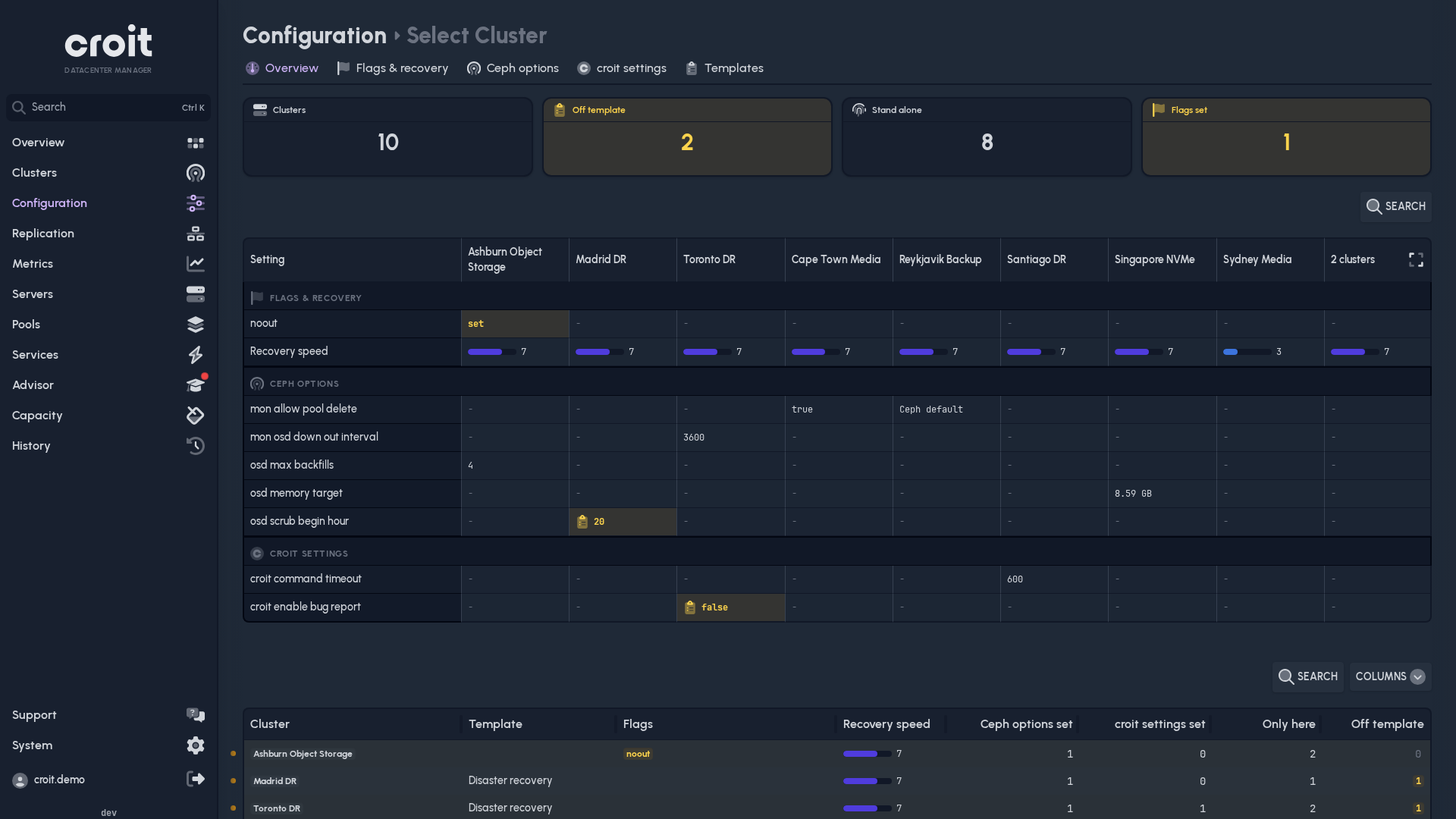
Pick a cluster in the breadcrumb to show its column first and list only the options it sets.
Reading the table
One row per setting, one column per cluster.
| Cell | Meaning |
|---|---|
| a value | set on the cluster |
- |
croit's default |
| Ceph default | Ceph's default |
| amber | differs from the template, or a flag is set |
Clusters with identical settings share one column. Show these clusters one by one splits it, Fold joins it again.
The tiles filter the options: Differ, Same everywhere, Off template.
Click a row, column or cell to select it; Ctrl (⌘ on a Mac) or Shift selects more. Compare shows only the selected columns. The link keeps the comparison, so you can share it.
Changing settings
- Edit, or double-click a cell: change a value.
- Add: set an option no cluster sets yet.
- Reset: return to croit's or Ceph's default.
- Set flags, Recovery speed: on Flags & recovery. The recovery speed is croit's slider from 1 to 10.
A change runs in steps:
- Pick the clusters. Clusters that cannot be changed are listed with the reason.
- Set the value.
- Review the change per cluster and click Apply. Nothing changes before that.
The change runs as a task (History → Tasks). If a cluster refuses, the others are still changed. History → Audit records the result for each cluster.
If CDM cannot tell whether a change went through, for example after a restart, an admin has to review it before the next change.
Templates
A template is a set of values for all clusters or for selected ones. CDM does not apply a template on its own; it marks the clusters that differ from it.
- A cluster follows at most one selected-cluster template, and there is at most one template for all clusters. Where both apply, the selected-cluster template wins for the settings it contains.
- New template creates one. On its page you edit its values and clusters.
- Bring in line sets the selected clusters or values back to the template. Back to template on Overview does the same.
- Deleting a template does not change any cluster.
Requirements
Viewers see all values and templates. Admins edit templates and change clusters; changing a cluster needs write access.